device management
19 Topics
The "Enable ADB Debugging" Maze: A Call for Architectural Clarity, Unified Nomenclature, and UI Improvements
Hello Chrome OS Enterprise Community and Google Product Team, I am an administrator and developer using a managed Chromebook for Android development. For over a month, I have been unable to toggle "Enable ADB debugging" in the Linux (Crostini) settings because it remains grayed out, despite my having full admin access. After weeks of back-and-forth with Google Workspace Support, it has become clear that this is not just a bug, but a profound architectural issue regarding how managed Chrome OS handles policy dependencies and how we navigate the Admin Console. Technical Environment & Stability Context It is important to note that my development environment is not a fresh install, but a long-running, stable workspace. I have been using the same Crostini container for over a year, and recently performed a successful dist-upgrade from Debian 12 (Bookworm) to Debian 13 (Trixie), which is the current Stable release. The fact that Crostini handled this major OS upgrade without requiring a reinstall demonstrates the high quality and robustness of the Chrome OS platform. However, this longevity raises a diagnostic question: Is the ADB toggle logic failing specifically on containers that have migrated through major versions? The Current Situation: A Maze of Hidden Dependencies Support has provided numerous potential fixes, suggesting that the "ADB" feature is not controlled by one switch, but is the result of a complex calculation involving multiple policies scattered across different menus. I have re-checked all the following solutions proposed by Support between Nov 7 and Dec 11, 2025. None have solved the issue: Date Policy Name Exact Admin Console Path Action Taken Nov 7 Developer tools Devices > Chrome > Settings > Users & browsers > Content > Developer tools Set to "Always allow use of built-in developer tools." Nov 21 Linux virtual machines Devices > Chrome > Settings > Users & browsers > Virtual Machines > Linux virtual machines Set to "Allow usage for virtual machines needed to support Linux apps for users." Nov 24 Untrusted sources Devices > Chrome > Settings > Users & browsers > Android applications > Android apps from untrusted sources Set to "Allow" (Required for sideloading). Dec 3 Developer Tools (Refined) Devices > Chrome > Settings > Users & browsers > Content > Developer tools Set to "Allow use of built-in developer tools, except force-installed extensions..." Dec 10 ADB Sideloading Devices > Chrome > Settings > Device settings > Virtual Machines > ADB sideloading Set to "Allow affiliated users of this device to use ADB sideloading." Dec 11 Unaffiliated VMs Devices > Chrome > Settings > Device settings > Virtual Machines > Linux virtual machines for unaffiliated users Set to "Allow usage for virtual machines needed to support Linux apps for unaffiliated users." The Architectural Problem Administrators are currently guessing which combination of "User Settings" and "Device Settings" will result in the feature unlocking. There is no visibility into which specific policy is overriding the others. Furthermore, the UI itself makes locating these settings inefficient. Proposal 1: A "Computed Policy View" We need a diagnostic view in the console. When an Admin looks at a locked setting (like ADB Debugging), the console should display: Status: LOCKED Blocked By: Device Policy > ADB Sideloading OR User Affiliation Check Failed. Proposal 2: A Standardized Nomenclature for Admin Options The Google Admin Console contains thousands of options. Support tickets often fail because describing the path to an option is tedious and prone to error. I propose implementing a Unique Identifier System: Menus/Tabs: assigned a 3-letter nickname. Sections/Options: assigned a numerical ID. Example: Instead of describing a long path, we could simply reference ID: DEV-CHR-DEV-VMS-042 DEV: Menu (Devices) CHR: Product (Chrome) DEV: Tab (Device Settings) VMS: Section (Virtual Machines) 042: Option (ADB Sideloading) Entering this ID into the search bar should take the admin directly to the specific toggle. Proposal 3: Collapsible Sections (Fold/Unfold UI) Currently, settings pages (like Users & browsers) are massive vertical lists. To reach a section near the bottom, an admin must scroll past hundreds of irrelevant options in previous sections. Even when using the "search on page" function, the visual clutter is overwhelming. I propose adding a Fold/Unfold feature: A "Collapse All / Expand All" button at the top of the settings page. Clickable section headers that allow us to hide large blocks of settings we are not currently editing. Conclusion We cannot manage what we cannot find or understand. The current "trial and error" approach to enabling standard developer features is hindering adoption in the enterprise sector. We need better mapping, a precise language (nomenclature), and a more efficient UI to navigate this complex environment. Best regards, Christophe Roux11Views0likes0Comments
Not able to set wallpaper on managed chromebook using the Policy API from GWS
Hello Team, While testing the wallpaper management functionality using the Chrome Policy API, we observed that the wallpaper does not get applied on managed ChromeOS devices, even though the API calls return a successful response. When we upload the wallpaper image using the uploadPolicyFile endpoint, it successfully returns a valid downloadUri.and wallpaper gets applied on device. However, when we attempt to apply this uploaded image as a wallpaper using the Policy API, the request completes successfully (200 OK), but the wallpaper does not apply on the chromebook device. We’d appreciate your help confirming the following points: Are there any additional parameters, permissions, or policy fields required for either of the following? chrome.users.Wallpaper chrome.devices.managedguest.Wallpaper Are there any known propagation delays, caching behaviors, or policy refresh constraints that could affect wallpaper deployment on managed devices?Solved43Views0likes2Comments
Join the ChromeOS Device Enrollment Limits TT
We are excited to announce an opportunity to join a new Trusted Tester program for a feature coming to ChromeOS that will help administrators manage device licensing more effectively: Device Enrollment Limits. What is the Feature? Currently, there is no easy way to prevent one team or organizational unit (OU) from consuming too many device licenses, which can leave other parts of your organization short. The ChromeOS TT for Device Enrollment Limits is designed to give you, as an administrator, more control over license consumption within your OUs. This pre-General Availability (GA) pilot will allow you to: Set specific enrollment limits per OU. Ensure fair access to licenses across your organization. Optimize resource allocation and prevent overconsumption. Once you request to be part of the TT (more details below) and we set you up for it, you'll find and manage this feature in the Google Admin Console under Devices > Chrome > Reports. For more information, head on over to our Product Hub for a Q&A blog post on this Trusted Tester. How to Apply If you are an administrator and would like to be included in this Trusted Tester program to try out Device Enrollment Limits and provide valuable feedback, please simply post a comment below to express your interest! We will reach out to you directly with the next steps.143Views0likes6CommentsLimitless Control: Join the ChromeOS Device Enrollment Limits TT
We are excited to announce an opportunity to join a new Trusted Tester program for a feature coming to ChromeOS that will help administrators manage device licensing more effectively: Device Enrollment Limits. Further to our discussion post on this recently launched trusted tester, we also wanted to share some more information on this feature and how it works. What is the "Device Enrollment Limits" feature and what problem does it solve? It's a new functionality in the Google Admin Console that allows administrators to set specific enrollment limits for each Organizational Unit (OU). It's designed to give administrators greater control over ChromeOS license consumption across their organization, ensuring fair access, optimizing license allocation, and preventing overconsumption. Where can administrators find and manage the "Device Enrollment Limits" feature in the Google Admin Console? You'll find it by navigating to Devices > Chrome > Reports. The feature is nested under Device enrollment limits on that page. How do administrators set an enrollment limit for a specific Organizational Unit (OU)? The basic steps are: Navigate to Devices > Chrome > Reports > Device enrollment limits. Click the specific OU you want to configure. In the dialog, turn on the toggle for the desired license type (Chrome Enterprise/Education Upgrade or Kiosk & Signage Upgrade). Enter a numerical value for the available enrollment slots in the "Device enrollments remaining" field. Click "Save". (Setting the limit to 0 prevents that OU from enrolling devices.) What types of licenses can be managed with this feature, and are there any exceptions? You can set limits for perpetual and annual Chrome Enterprise/Education Upgrade (CEU) and Kiosk & Signage Upgrade (KSU) licenses. Yes, bundled or packaged licenses cannot be adjusted using this feature. When an OU has both perpetual and termed licenses, perpetual licenses will be utilized first before tapping into termed ones. How can I quickly see which OUs have reached their limit? On the "Device enrollment limits" page, use the "Add a filter" button and select "Device enrollment limits reached". You can also choose filters to show only OUs with "0 remaining device enrollments for CEU" or "0 remaining device enrollments for KSU". What happens when an OU reaches its set limit? New devices will be unable to enroll in that specific OU. The Admin Console will show "0" remaining slots, and users attempting enrollment on the Chromebook will encounter an error. This prevents overconsumption Will the "Device Enrollment Limits" be manageable through the Chrome Policy API? No, management and configuration of these limits will be exclusively through the Google Admin Console user interface. What are the minimum requirements to participate in this pre-General Availability (GA) pilot program? To be a trusted tester, your organization must: Have a managed domain Have devices and licenses that are managed by the Google Admin Console. Ideal candidates are those who are also expected to provide good and consistent feedback within a short timeframe. How to Apply If you are an administrator and would like to be included in this Trusted Tester program to try out Device Enrollment Limits and provide valuable feedback, please simply post a comment below to express your interest! We will reach out to you directly with the next steps.53Views0likes0CommentsChromeOS Device Enrollment Essentials
This guide summarizes the mandatory steps to enroll devices, allowing your organization to enforce all device and user policies set in the Google Admin Console. 1. Prerequisites: Don't skip these Before enrollment, ensure you have: Administrator access: You must use an administrator account with the necessary privileges. Valid license/Upgrade: Enrollment consumes a valid Chrome Enterprise Upgrade, a bundled Chromebook Enterprise device, or Kiosk & Signage Upgrade license. Terms of Service (TOS) Acceptance: You must accept the TOS in the Admin Console (Devices > Chrome > Devices). Note: You must enroll the device before any end-user signs in. If a user signs in first, you must wipe the device and restart the process. 2. Enrollment methods [See video] A. Manual enrollment (The Ctrl+Alt+E Method) Use this for individual device setup or if zero-touch isn't configured. Stop at the sign-in screen: Power on the device but do not sign in. Initiate enrollment: Press the Ctrl + Alt + E shortcut (or select "Enterprise enrollment"). Sign in: Use an eligible admin or user account. Choose license: Select the correct license type (Enterprise or Kiosk & Signage) to ensure the right features are applied. B. Automatic enrollment This method significantly speeds up large-scale deployments: Zero-Touch Enrollment: For new ChromeOS devices purchased through an authorized reseller, the devices automatically enroll upon connecting to the internet. Flex Remote Deployment: The ChromeOS Flex Remote Deployment (FRD) is a solution that enables IT administrators to perform a zero-touch remote installation of ChromeOS Flex onto large fleets of compatible devices running Windows, followed by automatic enrollment. 3. Key admin controls & Best practices These policies, managed in the Admin Console, give you granular control over the process: Enrollment permissions: Control who can enroll a device. It's a good idea to restrict this to IT staff, or only allow re-enrollment of wiped devices to prevent unauthorized new devices from being added to your domain. Asset tracking: Set the Asset identifier during enrollment policy to allow the technician or user to enter the Asset ID and Location during setup. This is critical for accurate inventory management. Enforced enrollment: Use the Initial sign-in (Enrollment controls) policy to Require users to enroll device. This blocks a user from signing in to a non-enrolled device if they are eligible to enroll it, enforcing compliance. 4. Real-world deployment examples Manual setup (New staff): An IT technician uses Ctrl + Alt + E and enters the Asset ID and Location before confirming the enrollment, ensuring the device is correctly tagged and placed in the appropriate Organizational Unit (OU) from day one. Mass deployment (New office): Devices purchased with Zero-Touch automatically enroll upon network connection. Policies are instantly enforced, and the device is ready for the first sign-in without any manual IT intervention. Kiosk/Signage: When setting up a lobby display, the admin selects Enroll kiosk or signage device during the manual enrollment steps. This locks the device down for Kiosk Mode, preventing general user sign-ins as required by the license type. For more information check out the article in the Help Center: Enroll ChromeOS Devices And continue on through our Getting Started User Guides to the left.128Views0likes0CommentsYour guide to smarter ChromeOS administration
The pace of innovation in Chrome Enterprise and ChromeOS continues to accelerate. Earlier this year, we launched a wave of powerful AI-driven features designed to fundamentally change how you manage your fleet and support your end-users. We’ve summarized the key developments below, focusing on the practical, day-to-day applications for your administrative work. Part 1: Empowering IT: AI in the Admin Console Updates focus heavily on simplifying the most time-consuming aspects of device management using Google AI and Gemini. New Feature Practical Day-to-Day Application 1. Chrome Admin Assistance (Gemini Chatbot) Instant, conversational support and task execution. Instead of navigating complex menus, you can simply ask the chatbot in natural language to perform an action. For example, "What is the status of device serial number X?" or "Initiate a remote reboot for device Y." This significantly cuts down on routine, manual administrative tasks. SIgn up as a trusted tester to avail. 2. Natural Language Processing (NLP) Search Find policies and devices instantly without precise keywords. No more guessing policy names or remembering exact search syntax. You can now use plain English for complex queries like: "Show me all devices enrolled last month" or "Find the policy for blocking USB storage." This makes fleet audits and configuration checks much faster. 3. Intelligent Recommendations (Related Settings) Ensure comprehensive and optimized configurations. When you’re viewing the details of one policy (e.g., microphone control settings), the Admin Console now surfaces other logically related policies (like audio output settings). This prevents overlooked settings and ensures a more complete and secure setup. Part 2: Powering end-users (and reducing your tickets) While your focus is on the fleet, these end-user-facing AI enhancements are vital because they impact user productivity and, ultimately, your support load. Gemini integration in Google Workspace: If your organisation does have Workspace, users now have powerful AI assistants in Gmail (summarizing threads, composing faster), Docs, Sheets, and Slides. As an Admin, you can easily pin Gemini to the Chromebook shelf, ensuring simple, centralized access for all employees. AI built into ChromeOS: Users gain productivity tools that work across any application, not just Google's. Features like Help me read and Help me write assist with comprehension and content creation in third-party or web applications. Furthermore, AI-enhanced video call controls and Live Translate directly on the device improve meeting quality and cross-lingual collaboration, leading to less friction and fewer support requests for connectivity/tool issues. Part 3: The Right Hardware To unlock these most advanced AI experiences, organizations should look to Chromebook Plus devices, which meet a higher standard for performance and memory. When planning your next refresh cycle, ensure the hardware can support the full stack of new AI capabilities to maximize user benefit. Ready for the Deep Dive? Be sure to read the full post: The IT Admin's Guide to Google AI.40Views1like0Comments
Custom Protocol Handler for Isolated Web App Not Working After ChromeOS Update (May be).
Hello, After my ChromeOS device updated on September 25, 2025 (though not certain this is the direct cause), custom protocol handlers (web+collab:// and collab://) for my Isolated Web App (IWA) stopped working. Triggering these links in Chrome no longer launches the app—they simply do nothing. This was functional until two days ago. App Type: Isolated Web App (IWA) Manifest excerpt: { "name": "someapp", "id": "/", "short_name": "some-app", "version": "0.1.0", "update_manifest_url": "https://github.com/--some-repo--/iwa-release/releases/latest/download/update.json", "icons": [ { "src": "/192x192.png", "sizes": "192x192", "type": "image/png", "purpose": "any maskable" }, { "src": "/144x144.png", "sizes": "144x144", "type": "image/png", "purpose": "any maskable" } ], "start_url": "/", "scope": "/", "display": "standalone", "display_override": ["borderless"], "background_color": "#ffffff", "theme_color": "#3B82F6", "isolated_storage": true, "permissions_policy": { "cross-origin-isolated": ["self"], "direct-sockets": ["self"], "controlled-frame": ["self"], "window-management": ["self"], "display-capture": ["self"], "all-screens-capture": ["self"] }, "protocol_handlers": [ { "protocol": "web+collab", "url": "/?data=%s" }, { "protocol": "collab", "url": "/?data=%s" } ], "launch_handler": { "client_mode": "navigate-existing" }, "window_controls_overlay": { "enabled": true } } Recent Changes Enrolled new users in Google enterprise Updated the app manifest (see above) ChromeOS device updated on 2025-09-25 Observed Behavior Protocol links for both my IWA (web+collab://) and the official ChromeOS IWA SINK app (web+cf://) no longer launch the installed apps No errors, warnings, or manifest validation issues Clicking protocol links does nothing (both in managed and unmanaged device states) What I've Tried Checked manifest and protocol handler registration Tested after app reinstall and in different device policy states Reviewed enterprise Admin Console for new/relevant policy changes Searched for protocol handler or IWA-related changelogs/updates Compared behavior with different protocol URLs and schemes Questions Is anyone else experiencing protocol handler breakages for IWAs since a recent Chrome/ChromeOS update? Have there been changes in policy, manifest format, or handler registration that could affect this? Any ideas or diagnostics for discovering if Chrome or policy is blocking/ignoring the protocol? Any leads, recent experiences, or possible workarounds would be greatly appreciatedSolved128Views1like5Comments
Best practices for deploying WireGuard VPN across managed ChromeOS devices (system-wide or via Admin Console)
Hello, We currently manage a growing fleet of ChromeOS devices (Chromebooks and Chromeboxes) through our Google Workspace domain. All devices are enrolled, updated to the latest ChromeOS version, and centrally configured via the Admin Console. Our VPN of choice is WireGuard, which ChromeOS now supports natively. We followed Google’s official documentation to configure WireGuard per user: Configure VPNs on ChromeOS (Google Support) The challenge we are running into is scalability: configuring WireGuard individually on a per-user basis is becoming increasingly tedious as our organization grows. Ideally, we would like to achieve one of the following: - System-wide tunnel setup - Assign a WireGuard key per device, rather than per user. This would allow the VPN configuration to apply regardless of who logs into the machine. - Admin Console integration - Ability to push or preconfigure WireGuard VPN settings (similar to how Wi-Fi networks or other VPN types can be managed centrally). From what I understand, the Admin Console allows pushing some network settings, but WireGuard does not currently appear as a supported option. We also explored the possibility of using an Android VPN app as a workaround. However, the Android subsystem seems to create its own isolated IP pool, which breaks certain use cases for us — e.g., we need internal VPN IP addresses for DNS resolution and internal resource access, which doesn’t work properly when tunneled through the Android environment. So my questions are: Is there currently any way to enforce or distribute WireGuard VPN configurations via the Admin Console? If not, is there a recommended workaround to achieve system-wide VPN coverage (device-level rather than user-level)? More generally, what is the best practice for deploying WireGuard in centrally-managed ChromeOS environments today? I realize WireGuard support on ChromeOS is still relatively new and limited to certain devices, but we’ve been using it successfully with most of our devices. We’re just looking for the most scalable and officially supported way to roll this out across our managed devices. Thanks in advance for any insights!135Views0likes4CommentsNew user guides: ChromeOS policies
Hey everyone, Just wanted to let you know we've published two new articles in the User Guide section of the community, designed to help you master ChromeOS policies! These new guides dive deep into the specific steps for applying policies across your fleet: Setting ChromeOS device policies: Learn how to configure policies that apply to your managed ChromeOS devices, regardless of who is signed in. Setting ChromeOS user and browser policies: Get the details on configuring policies that apply to specific users when they sign in, as well as policies for the Chrome browser across different operating systems. All comments and feedback are welcome! Please let us know if these guides help streamline your policy setup. What other ChromeOS topics would you like to see covered in our next user guides?25Views0likes0CommentsChrome OS Flex AUE in Google Admin
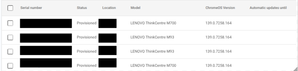
Hey. The admin console has a fantastic feature where you can see the AUE of your devices pr year. It makes it easier to plan budget for replacing devices going out of support and planning execution. https://admin.google.com/ac/chrome/devices/?sf=2&so=2&tab=dashboard However - you can only see Chrome OS devices since the "Automatic updates until" field in Google Admin is not populated as in the example below. Obviously this information is available somewhere to be displayed, but it is currently not. I would really like to avoid exporting inventory to a spreadsheet, use the certified model list (https://support.google.com/chromeosflex/answer/11513094?hl=en) to populate the empty field in the spreadsheet and keep track of it there. How do others plan inventory replacements? Has anyone else tried to reach out to the Chrome OS team pointing out this flaw?Solved63Views0likes1Comment